How to Install CloudStream on Any Device (October 2026 Guide)
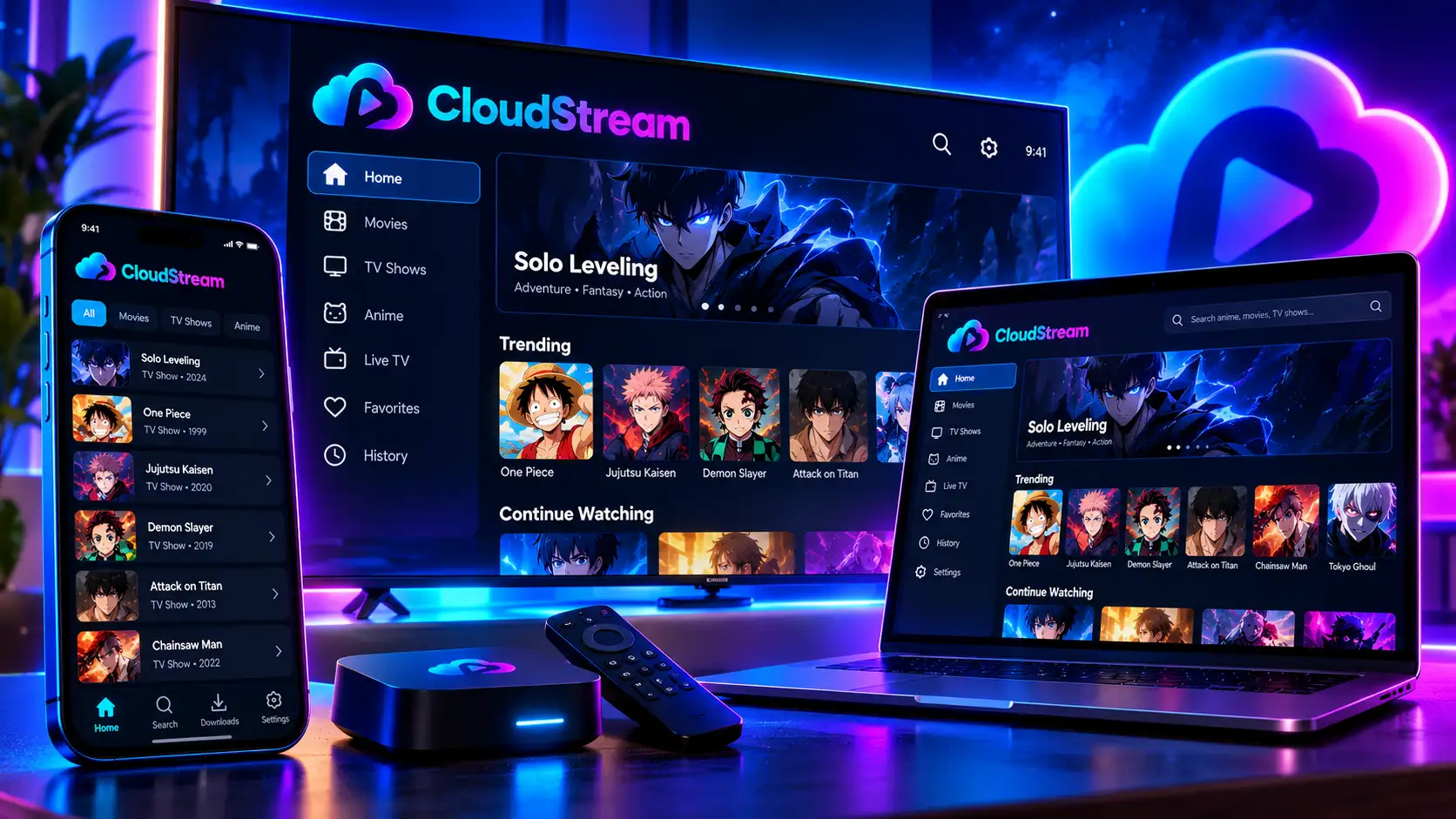
You can install CloudStream on an Android phone, a Fire TV Stick, an Android TV box or a computer, and on most of them it takes less than ten minutes. The steps change a little from device to device, so this page helps you pick the right method, shows the short version of each, and links to the full step-by-step guide. Every method was tested on a Samsung Galaxy S25 Ultra, a Fire TV Stick 4K Max and a Windows 11 PC, and we recheck them whenever a new version comes out.
Pick your device to jump straight to it:
| Your device | Method | Time | Full guide |
|---|---|---|---|
| 📱 Android phone or tablet | Download the APK and tap Install | About 2 minutes | Android guide |
| 🔥 Fire TV Stick or Cube | Downloader app (Fire OS only) | About 5 minutes | Fire TV guide |
| 📺 Android TV or Google TV | Downloader app or USB drive | About 5 minutes | Android TV guide |
| 💻 Windows, Mac or Linux | BlueStacks, BlueStacks Air or Waydroid | About 10 minutes | PC guide |
| 💼 Chromebook | Android app support | About 5 minutes | Chromebook section below |
| 🍎 iPhone or iPad | Not possible | — | iPhone section below |
Before you start
What Every CloudStream Install Needs
Whatever device you use, the same three things decide whether the install goes smoothly:
The official APK.
CloudStream is only published on the developers’ GitHub. Our CloudStream APK download page links straight to it and lists the file’s SHA-256 fingerprint, so you know it hasn’t been changed. Copies from random mirror sites are the number one cause of failed or unsafe installs.
Permission to install apps from outside the store.
Every device blocks this by default because CloudStream isn’t in Google Play or the Amazon Appstore. You allow it once, for one app (your browser or Downloader), and can switch it off afterwards.
A repository after installing.
CloudStream opens empty on every device. You add a repository and a few extensions to fill it, which takes about two minutes. Our repository list has tested shortcodes for every language.
You don’t need an account, a credit card or root access on any device.
Install unknown apps
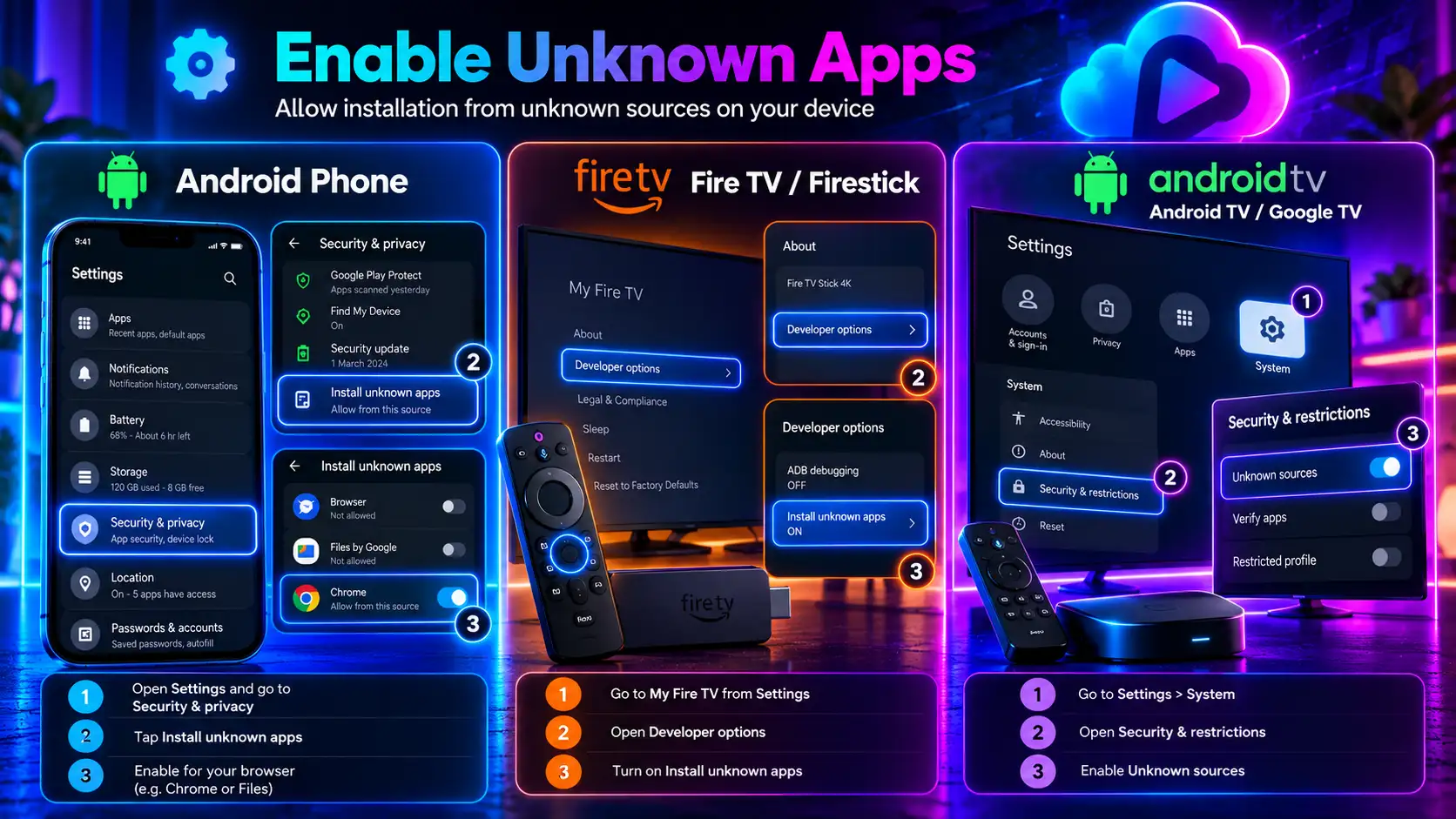
How to Allow “Install Unknown Apps” on Each Device
This is the step people get stuck on most, because each device hides it in a different menu. Here’s where it lives:
| Device | Where to allow it | Allow it for |
|---|---|---|
| Android phone (Android 8+) | Settings → Apps → Special app access → Install unknown apps | Chrome or your Files app |
| Samsung phone | Settings → Apps → ⋮ menu → Special access → Install unknown apps | Chrome or My Files |
| Android 7 and older | Settings → Security → Unknown sources | The whole phone |
| Fire TV (Fire OS) | Settings → My Fire TV → Developer Options → Install unknown apps | Downloader |
| Android TV / Google TV | Settings → Apps → Security & restrictions → Unknown sources | Downloader or your file manager |
| Chromebook | Settings → Apps → Google Play Store → Manage Android preferences → Security | Your file manager |
On Fire TV, Developer Options is hidden until you open Settings → My Fire TV → About and click your device name seven times. On Android TV, the menu name varies by brand, so if you can’t find it, search unknown in Settings.
Android
Android Phones and Tablets: The 2-Minute Install
Android is the easiest device of all, because it’s the platform the app was built for. The short version:
Download the APK from our download page in Chrome.
Open the file from your notifications or Downloads folder.
Allow your browser to install unknown apps when asked.
Tap Install. If Play Protect warns you, tap More details → Install anyway.
Open the app and add a repository.
The whole thing takes about two minutes. Our homepage has the complete Android install guide, with a screenshot for each step, the permission menu for every phone brand, and the first-time setup.
Fire TV
Install CloudStream on Fire TV Stick
Fire TV has no normal web browser, so you get the app with the free Downloader app from the Amazon Appstore. You unlock Developer Options, allow Downloader to install unknown apps, then enter our download page address cloudstreamdownload.com/download-cloudstream to fetch the file.
One important check first: Amazon’s newest entry models, such as the Fire TV Stick 4K Select, run Vega OS, which can’t install any app from outside the Appstore. Open Settings → My Fire TV → About; if it says Fire OS, you’re fine. Amazon has also started blocking some sideloaded streaming apps since late 2025, though CloudStream hasn’t been on the public block lists.
Full steps, the device table and fixes: CloudStream on Firestick guide.
Android TV
Install CloudStream on Android TV and Google TV
Android TV and Google TV devices, including the Google TV Streamer, Chromecast with Google TV, Nvidia Shield, Onn 4K box and most Sony, TCL and Hisense smart TVs, run the same app as your phone. You install it with Downloader from the Play Store, or copy the APK over on a USB drive. After that, switch CloudStream to the TV layout so the remote works properly.
Unlike Amazon, Google hasn’t blocked sideloading on TVs, so this is the safest long-term choice for a big screen. Full steps: CloudStream Android TV guide.
PC
Install CloudStream on Windows, Mac and Linux (PC)
There’s no official desktop app, so on a computer CloudStream runs inside an Android emulator:
Skip any guide that tells you to use Windows Subsystem for Android (WSA). Microsoft shut it down on March 5, 2025. Full steps, settings and fixes: CloudStream for PC guide.
Chromebook
Install CloudStream on a Chromebook
Most Chromebooks made since 2019 run Android apps, so CloudStream works like it does on a phone. Because the app isn’t in the Play Store, you need to sideload it: turn on the Linux development environment, enable ADB debugging for Android apps, then install the APK. School and work Chromebooks usually block this, so use a personal device. Once installed, pick the Tablet layout for the best fit.
iPhone
Can You Install CloudStream on iPhone or iPad?
No. CloudStream is Android-only, and iOS doesn’t allow APK files. Be careful with sites offering a “CloudStream iOS” download; none of them are real. If you use an iPhone, your options are an Android TV device, a Fire TV Stick or your computer.
Compare
Which Device Is Best for CloudStream?
| Android phone | Fire TV Stick | Android TV | PC | |
|---|---|---|---|---|
| Install difficulty | Easiest | Easy | Easy | Medium |
| Time | 2 minutes | 5 minutes | 5 minutes | 10 minutes |
| Screen | Small | TV | TV | Monitor |
| Controls | Touch | Remote | Remote | Mouse and keyboard |
| Sideloading future | Stable | Uncertain (Vega OS) | Stable | Stable |
| Best for | Watching anywhere | Existing Fire TV owners | New TV setups | Watching at a desk |
If you’re buying something new for CloudStream, an Android TV device is the safest bet. If you already own a Fire OS stick, it works great.
After installing
CloudStream Setup After You Install (All Devices)
The first five minutes of CloudStream setup are the same everywhere:
Pick your layout.
Phone, Tablet or TV, under Settings → Layout.
Add a repository.
Settings → Extensions → Add Repository, then type a shortcode like megarepo.
Install two or three extensions
from it. More isn’t better, especially on a TV stick.
Choose a provider
on the home screen, using the selector in the corner.
Turn on auto-updates and make a backup
in Settings → Updates and Backup.
How to Use CloudStream Once It’s Set Up
How to use CloudStream day to day comes down to a few habits. Search checks all your extensions at once. If a video buffers, tap the screen, choose Sources and pick another link. Turn on subtitles from the player, download episodes for offline viewing, and bookmark shows into your library. On a TV, long-press OK on a title for extra options. Our settings guide explains every option.
Updating
How to Update CloudStream on Any Device
Install the new APK right over the old one, the same way you installed it the first time: tap the file on a phone, reuse your Downloader code on a TV, or drag it into the emulator on a PC. Android keeps your repositories, library and settings. Never uninstall first, because that wipes your setup. Extensions update separately, so check Settings → Extensions afterwards.
Moving devices
Move Your Setup From One Device to Another
You don’t have to rebuild everything when you install CloudStream on a second device. On your current device, open Settings → Updates and Backup → Backup. Copy the backup file to the new device (cloud storage or a USB drive works), install the app, and restore it from the same menu. Your repositories, library and watch history come across. If a restore fails, see our backup and restore guide.
Problems
CloudStream Install Problems and Fixes
| Problem | Device | Fix |
|---|---|---|
| “App not installed” | Any | Delete the file, download a fresh copy, remove any old differently signed copy |
| “Parse error” | Any | The download didn’t finish, or Android is older than 5.0 |
| Install button greyed out | Phone | Turn off screen overlay apps like blue-light filters |
| Play Protect warning | Phone, Android TV | Tap More details → Install anyway |
| No Developer Options | Fire TV | Click your device name in About seven times |
| No “Install unknown apps” at all | Fire TV | Your stick runs Vega OS and can’t sideload |
| Emulator very slow | PC | Turn on virtualization (VT-x or AMD-V) in BIOS |
| App opens empty | Any | Add a repository; see our blank screen fix |
| Videos won’t play | Any | See No Links Found |
For anything else, our errors and fixes hub covers every common problem.
Safety
Is It Safe to Install CloudStream?
Yes, when the file comes from the official source. CloudStream is open-source, so its code is public on GitHub, and the official build has no ads or trackers. The risk comes from re-uploaded copies and fake “installers”, which can carry adware. Three habits keep you safe on any device: download from our page or GitHub only, compare the SHA-256 fingerprint, and be suspicious of anything asking for permissions like SMS or contacts. A VPN is optional and only helps with sources blocked in your country.
FAQ
How to Install CloudStream: FAQ
What’s the easiest way to install CloudStream? On an Android phone: download the APK, allow your browser to install it, and tap Install. It takes about two minutes.
Pick Your Device and Get Started
Grab the official APK, choose your device’s guide above, and you’ll be watching in minutes. New to the app? Our homepage explains what CloudStream is and how it works.