CloudStream APK Download – v4.8.0 Stable and Beta
Looking for a safe CloudStream APK download, or a cloud stream APK download as many people type it? You’re in the right place. The newest stable build is v4.8.0, and the button below takes you to the exact file the developers published on GitHub, with nothing added or changed. It’s free, it weighs about 67 MB, and it runs on any Android device from version 5.0 up.
New to the app? Our CloudStream APK guide explains what it is, how it works and what you can watch.
| File details | |
|---|---|
| Version | v4.8.0 (stable) |
| Released | July 2026 |
| Size | About 67 MB |
| Works on | Android 5.0 and newer |
| Package name | com.lagradost.cloudstream3 |
| Where it comes from | Official recloudstream GitHub release |
| We last checked this link | Oct 28, 2026 |
Stable or beta
Stable or Beta: Which CloudStream APK Download Should You Pick?
For most people, the stable build is the one to get. It’s tested, it works with nearly every extension, and it won’t surprise you mid-episode. The beta is for people who like trying features early and don’t mind the odd crash.
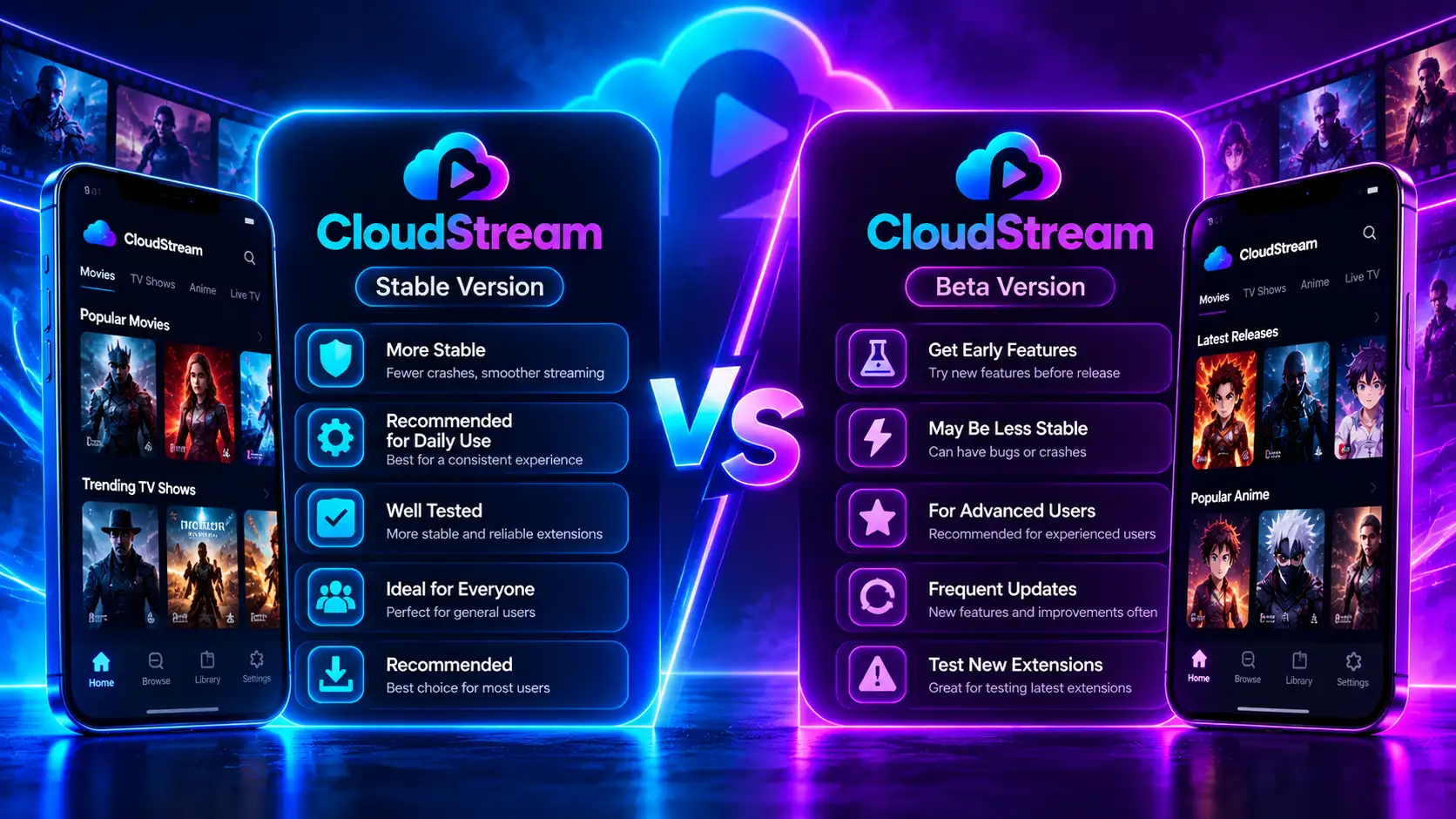
| Stable (v4.8.0) | Beta (pre-release) | |
|---|---|---|
| Who it suits | Everyday watching | Testers and early adopters |
| Reliability | High | Can crash or misbehave |
| Extension support | Almost everything works | A few extensions may lag behind |
| How often it changes | Every few months | Whenever new code lands |
| Our advice | Use it on your main phone and TV | Try it on a spare device |
Where the file comes from
Where Does This CloudStream APK Download Come From?
Straight from the source. The CloudStream team publishes every build on its GitHub releases page, and our download buttons point there instead of to a copy on some random file host. That matters because a re-uploaded APK can be altered without you noticing, while a GitHub release is tied to the project’s own account and history.
We don’t modify, repackage or bundle anything with the file. If a site offers you a “special” CloudStream download that differs from the GitHub one, treat it as a red flag.
Should You Trust a CloudStream Download From Another Site?
Usually not. Dozens of sites host their own CloudStream APK download, and most are simply re-uploads of the GitHub file. Some are honest copies. Others are old builds renamed as new ones, or files bundled with adware. You can’t tell which is which just by looking at the page.
Before you trust any CloudStream download you find elsewhere, ask four questions:
If any answer is no, grab the file from this page or straight from GitHub instead.
Verify
How to Make Sure Your CloudStream APK Is Genuine
Checking your CloudStream APK download takes under a minute, and it’s the single best habit for anyone who sideloads apps. Here are four quick checks, from easiest to most thorough:
Look at the package name.
After installing, open Settings → Apps → CloudStream. A real build always shows com.lagradost.cloudstream3. Anything else is a different app wearing CloudStream’s name.
Compare the size.
The file should be close to the size in the table above. A version that’s much bigger or smaller deserves suspicion.
Match the SHA-256 fingerprint.
This is a unique code generated from the file itself, so even a one-byte change produces a completely different result.
Scan it.
Upload the file to VirusTotal for a second opinion.
If you’d rather grab the cloud stream GitHub APK yourself, go to github.com/recloudstream/cloudstream, open Releases, and download the .apk listed under the newest version.
Is There a CloudStream Mod APK?
No, and you don’t need one. CloudStream has no paid tier, no locked features and no ads to strip out, so a “CloudStream mod APK” has nothing to improve. When someone offers one anyway, the only change worth making to a free app is hidden code you didn’t ask for. Skip it and stick with the official download.
Install
How to Install CloudStream After Downloading
Once your CloudStream APK download finishes, installing it takes about a minute:
Open the file.
Pull down your notifications and tap the finished download, or find it in your Downloads folder.
Give permission when asked.
Android will say it can’t install apps from this source yet. Tap Settings, flip the switch for the app you downloaded with, then go back.
Tap Install.
Wait a few seconds for it to finish.
If Play Protect pops up,
that’s normal for any app from outside the Play Store. Tap “More details” and then “Install anyway” if your file came from GitHub and the hash matched.
Open CloudStream and add a repository.
The app starts empty until you do. Our repositories and extensions guide has tested links.
Home screen still empty after adding a repository? Our blank screen fix walks you through it, and the settings guide covers the options worth changing on day one.
Other devices
Download CloudStream for TV, PC and Other Devices
A cloud stream APK download works on almost any screen that runs Android. Each device just gets the file a slightly different way:
| Device | How the APK gets there | Step-by-step guide |
|---|---|---|
| Android phone or tablet | The big button at the top of this page | You’re here |
| Fire TV Stick or Cube | Downloader app with our code | Fire TV guide |
| Android TV, Google TV | Downloader app or a USB drive | Android TV guide |
| Windows PC | BlueStacks emulator (WSA was retired in 2025) | PC guide |
| Mac | An Android emulator | PC guide |
| Chromebook | Works if your Chromebook supports Android apps | Same steps as a phone |
| iPhone or iPad | Not possible, no iOS build exists | — |
Want every device in one place? Our install guides hub lists them all.
Beta
CloudStream Beta Download: What You Get and What to Watch For
The CloudStream beta is a pre-release build that the developers publish on GitHub before a feature reaches stable. You’ll find it on the project’s releases page, marked “Pre-release.”
Why people try it:
What to keep in mind:
How to Go Back From CloudStream Beta to Stable
Open Settings → Updates and Backup and create a backup.
Download the stable v4.8.0 file from this page.
Try installing it over the beta. If Android says “App not installed,” remove the beta first.
Open the stable build and restore your backup.
Older versions
Older CloudStream Versions and Release History
Stick with the newest build unless something specific breaks. Older builds gradually stop working with newer extensions and skip important security patches. That said, rolling back can make sense if a fresh release misbehaves on your particular phone.
| Version | Released | What changed |
|---|---|---|
| v4.8.0 | July 2026 | Skip-intro database, title overlay on TV, more external players, security and download fixes |
| v4.7.0 | March 2026 | One-tap repository install, download queue, torrent streaming, extra providers |
| v4.6.x | 2025 | Stability fixes and extension updates |
Every earlier build is still listed on the official GitHub releases page.
How to Check Which CloudStream Version You Have
The quickest way is from Android itself. Open Settings → Apps → CloudStream → App details, and the installed version is listed near the bottom. Inside CloudStream, the version also appears at the bottom of the app’s Settings screen.
Now compare it with our release table:
You don’t have to check by hand forever, either. CloudStream can look for new releases on its own and prompt you when one is out; you’ll find that option under Settings → Updates and Backup.
Permissions
What Permissions Does the CloudStream APK Ask For?
Only what a video player needs. Here’s the honest list:
| Permission | Why CloudStream needs it |
|---|---|
| Internet | To stream video and load extensions |
| Storage / media access | To save downloads to your device |
| Install other apps | Only used if you let it install its own updates |
| Notifications | For download progress and new-episode alerts |
If a so-called CloudStream download asks for your contacts, SMS, call logs or location, it isn’t the real app.
Updating
Updating to a New Version Without Losing Anything
Install the new file right over the one you have, and Android keeps your library, repositories and progress. There’s no need to remove the old app first, and doing so would erase your setup. The full walkthrough is on our homepage update section.
Moving CloudStream to a New Phone or TV
You don’t have to rebuild your setup from scratch. CloudStream’s backup file carries most of it across in a couple of minutes:
Back up the old device.
Open Settings → Updates and Backup and tap Backup. Save the file somewhere the new device can reach, such as Google Drive or a USB stick.
Install on the new device.
Do a fresh CloudStream APK download from this page and install it as usual.
Restore.
Open Settings → Updates and Backup → Restore and pick your backup file.
Check your extensions.
Your repositories, lists, watch history and settings come back, but you may need to reinstall some extensions from those repositories.
If the restore fails, our backup and restore guide covers the usual causes, like a version mismatch between the two devices.
Downloading CloudStream on a Slow or Limited Connection
The CloudStream APK download is only about 67 MB, so even mobile data handles it comfortably. If your connection is patchy, these tips save you a headache:
Once it’s installed, the app itself uses very little data. Almost all of it goes to streaming video, so pick a lower quality if you’re on a tight plan.
Problems
CloudStream APK Download Not Working? Quick Fixes
| What’s happening | Why it usually happens | What to try |
|---|---|---|
| Download stuck or very slow | Unstable connection or busy server | Switch between Wi-Fi and mobile data, then retry |
| Browser blocks the file | Chrome flags all APK files by default | Tap “Download anyway”; the warning isn’t specific to CloudStream |
| “App not installed” | Damaged file, old Android or a differently signed copy already installed | Download again, check Android 5.0+, remove the other copy after a backup |
| “There was a problem parsing the package” | The file didn’t finish downloading | Delete it and download a fresh copy |
| Play Protect warning | Normal for apps outside the Play Store | Tap “More details” → “Install anyway” if the hash matched |
| Not enough space | Phone storage is nearly full | Free up about 200 MB and try again |
Still stuck? Our CloudStream errors and fixes hub covers every install problem in detail.
Installed fine but nothing plays? That’s an extension issue, not a download one. Try the No Links Found guide, check that your extensions are updating, or see whether a VPN helps with a source blocked in your country.
How We Keep This Download Up to Date
A download page is only useful if the file is current, so here’s exactly how we look after this one:
That way, a cloud stream APK download from this page is always the real, latest build, never a renamed old copy.
FAQ
CloudStream Download FAQ
Is the CloudStream download free? Completely. You’ll never pay for the app, and you’ll never be asked to.
Ready to Download CloudStream?
Grab the official CloudStream APK download (v4.8.0), check the hash, and you’ll be streaming in a few minutes. If you want the newest features first, the CloudStream beta is one tap away. Either way, you can download CloudStream APK files here knowing they match the official release.