Install CloudStream APK on FireStick (Complete Setup Guide)
An Amazon FireStick doesn’t work like a phone — there’s no browser downloading a file straight to a folder, and no Play Store listing to search for this in the first place. That’s the part that stops most people before they even get started. This guide walks through the actual process end to end, the settings that are easy to miss, and what to do when something doesn’t go as expected.
What You Need To Install CloudStream APK on FireStick
| Requirement | Details |
|---|---|
| A Fire Stick or Fire TV device | Any generation works, though older models benefit from a few extra adjustments covered up |
| A Wi-Fi connection | Needed for the download itself and for streaming afterward |
| Amazon account signed in | Required to access the Downloader app from the Amazon Appstore |
| A few minutes of setup time | Typically 5–8 minutes start to finish |
Nothing beyond a standard Fire Stick and a Wi-Fi connection is required — no computer, no cables, no separate account.
Install CloudStream APK On FireStick – Step by Step Guide
This is the step almost every guide glosses over, and it’s genuinely the most important one to get right, since Amazon’s Fire OS labels this differently than plain Android does.
- From the Fire Stick home screen, go to Settings (the gear icon, usually farthest right in the top menu).
- Select My Fire TV, then Developer Options.
- Find Apps from Unknown Sources and turn it on.
- If a warning appears about installing apps from outside the Appstore, select Turn On to confirm.


If Developer Options doesn’t appear under My Fire TV, it needs to be unlocked first — go to My Fire TV → About, then select the device name (usually shown as a build number) seven times in a row until a message confirms developer mode is enabled. This is a one-time step.
Since Fire Stick doesn’t browse the web the way a phone does, getting the APK onto it requires a small app called Downloader, which handles this specifically.
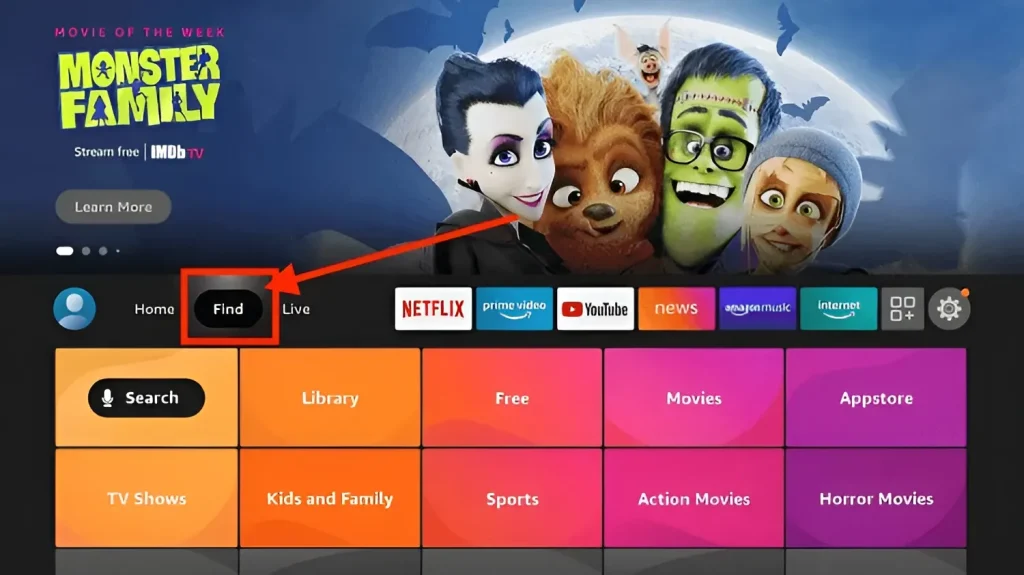
- From the Fire Stick home screen, go to Find → Search.
- Type Downloader and select it from the results.
- Select Get or Download to install it — it’s free and published by AFTVnews, a name worth confirming since a few similarly named apps exist.
- Open Downloader once installed.


- Inside Downloader, select the URL field and enter the CloudStream APK download link.
- Select Go to start the download. This usually takes under a minute on a stable connection.
- Once downloaded, a prompt will appear to install the app — select Install.
- When installation finishes, select Done, or Open to launch it right away.
- Downloader will likely ask whether to delete the APK file afterward — choosing Delete here just frees up storage and doesn’t affect the installed app in any way.


The home screen will be empty the first time it opens on Fire Stick — this is expected, not a sign anything went wrong.
- Navigate to Settings → Extensions → Add Repository using the Fire Stick remote.
- Enter a repository’s short code, or paste its URL if a short code isn’t available.
- Select Add. The repository should appear in the list within a few seconds.
- Open the repository and install the specific extensions wanted — there’s no need to install everything it offers.
From here, browsing and playback work the same way they would on any other device, just navigated with the Fire Stick remote instead of touch.
Install CloudStream APK on FireStick Older Versions
First and second-generation Fire Stick devices can run CloudStream, but they have noticeably less memory than newer models, and that shows up in ways worth knowing about ahead of time rather than troubleshooting later:
Close background apps before opening CloudStream.
Older Fire Sticks don’t manage background memory as efficiently as newer ones, and a few idle apps running can visibly slow things down.
Expect slightly longer load times when opening a new repository.
This is a hardware limitation rather than anything wrong with the repository itself.
Avoid running screen mirroring or casting at the same time as streaming.
Older models share limited processing power between these tasks, and running both together is a common cause of stuttering that has nothing to do with the internet connection.
A Fire Stick 4K or newer model resolves most of these issues on its own, if upgrading is an option — but none of the above are strictly blockers on older hardware, just things that affect smoothness.
Why FireStick Is a Popular Choice for This
FireStick is one of the most common ways people set this app up, and there’s a straightforward reason for it: it’s the cheapest way to turn an existing TV into a smart TV without buying new hardware, and Fire OS allows installing apps from outside the Appstore.
A CloudStream FireStick setup, once done, behaves exactly like it would on a Dedicated Android TV — same interface, same repositories, same extensions — just on hardware that costs a fraction of the price. That’s the main reason this specific setup gets searched for more than almost any other device combination.
Does the FireStick Model Matter?
Amazon sells several Fire TV devices, and the differences between them affect performance more than they affect the setup process itself, which stays identical across all of them:
Installing CloudStream APK on FireStick follows the same steps no matter which Amazon model is being used. What changes from one model to another is how smoothly the app runs afterward, since memory and processing power differ across the lineup.
FireStick (basic/Lite models):
Works fine, though these have the least memory of the lineup — the tips for older models further down apply here most directly.
FireStick 4K and 4K Max:
Noticeably smoother, with enough memory that background slowdowns are rare.
Fire TV Cube:
The most powerful option, with performance closer to a dedicated Android TV box than a stick-form device.
None of this changes how a CloudStream 3 firestick install is done — the steps are identical across the entire lineup. It only affects how smoothly things run afterward, particularly with multiple extensions installed at once.
Common FireStick Specific Problems
A few issues come up specifically on FireStick that don’t show up the same way on other devices:
Downloader shows an error when entering the APK URL.
This is almost always a typing mistake in the link itself. Fire Stick’s on-screen keyboard makes long URLs easy to mistype — double-checking before selecting Go saves a repeated attempt.
The install prompt never appears after downloading.
This usually means Apps from Unknown Sources wasn’t actually enabled before the download started. Confirm that setting, then try installing the same downloaded file again rather than redownloading it.
CloudStream installs but won’t open.
Restarting the Fire Stick (Settings → My Fire TV → Restart) resolves this in most cases — it’s typically a temporary memory issue rather than a problem with the app itself. If the app opens to an empty screen instead, see our guide to fixing the CloudStream blank screen.
The remote doesn’t navigate properly inside the app.
Backing out to the Fire Stick home screen and reopening CloudStream usually resets this. If it persists, restarting the Fire Stick itself is the next step.
Playback stutters specifically on Fire Stick but not on other devices.
This points toward available memory rather than internet speed — closing other apps running in the background, and avoiding simultaneous screen mirroring, addresses this in most cases on older models.
The Fire Stick runs out of storage during setup.
Older models ship with limited built-in storage, and several installed apps can fill this quickly. Checking Settings → My Fire TV → Storage shows what’s available before starting.
Downloader itself won’t open after installing it.
This is occasionally a temporary Appstore sync issue rather than anything wrong with the download. Restarting the Fire Stick once and reopening Downloader usually resolves it without needing to reinstall anything.
The APK download stalls partway through inside Downloader.
Usually a Wi-Fi signal issue rather than a problem with the file itself — moving closer to the router, or restarting the Fire Stick’s Wi-Fi connection under Settings → Network, typically fixes this before a redownload is even needed.
Most Fire Stick problems come down to memory, storage or a weak Wi-Fi signal, and the fixes above cover the ones that come up most often. If something still isn’t working, restart the Fire Stick once more and repeat the step that failed before trying anything else. Still stuck? Check our guide to Common CloudStream Errors and their fixes, which covers problems that aren’t specific to Fire Stick.
An Alternative: Casting Instead of Installing Directly
Installing directly on the FireStick, as covered above, is the recommended approach since it gives full access to repositories, extensions, and offline downloads. There is a lighter alternative worth knowing about: casting from a phone using the Firestick’s built-in screen mirroring.
This skips the Downloader setup entirely, but comes with real trade-offs — no offline downloads on the TV itself, playback tied to the phone staying on and connected, and generally less stable performance than a direct install. For occasional use this can work, but for regular use, installing directly is the more reliable option covered in the steps above.
Fire Stick vs. Other Devices — What’s Actually Different
| Feature | Fire Stick | Android TV | Phone/Tablet |
|---|---|---|---|
| Download method | Downloader app (sideloading) | Downloader app or similar sideloading tool | Direct browser download |
| Navigation | Remote control | Remote control | Touchscreen |
| Typical setup time | 5–8 minutes | 5–7 minutes | 2–3 minutes |
| Common limitation | Storage on older models | Varies by manufacturer | Rarely an issue |
The process is conceptually the same everywhere — download, allow the install, add a repository — but Fire Stick’s Amazon-specific settings and its sideloading requirement are what set it apart from a Standard Phone Install.
Is it Safe to Install CloudStream APK on FireStick
The app itself is open-source, meaning its code is publicly available and can be reviewed by anyone — nothing about it runs invisibly in the background.
Using the Downloader app and enabling Apps from Unknown Sources is a standard, well-established method for installing apps on Fire Stick that aren’t in the Amazon Appstore, and it doesn’t put anything else on the device at risk on its own.
As with any sideloaded app on any device, the main thing worth being careful about is downloading the APK from a source that can be trusted.
Reading Repository and Extension Descriptions Before Installing
Fire Stick’s remote-based navigation makes it easy to rush through repository and extension lists without actually reading what each one says — tapping through with a directional pad is slower than scrolling on a touchscreen, so it’s tempting to just install the first few options that show up.
Taking a moment to check an extension’s description, update date, and content focus before installing saves the more tedious task of removing several unused ones later.
This matters slightly more on Fire Stick than on touch devices specifically because backing out of a mistaken install and finding the right one afterward takes longer with a remote than with a finger.
No Remote Handy? Using a Phone Instead
If the physical Fire Stick remote is lost or its batteries die mid-setup, the free Fire TV app (available for both Android and iPhone) turns a phone into a fully functional remote, including a keyboard for typing repository URLs — often faster to type on than the on-screen remote-based keyboard.
It connects to the Fire Stick over the same Wi-Fi network, requires no extra setup beyond installing the app and signing into the same Amazon account, and works throughout the entire process covered above, from enabling Unknown Sources through adding a repository.
Keeping Things Running Smoothly For Long-Term
A properly set up Fire Stick doesn’t need much ongoing attention, but a few habits help avoid the most common slowdowns over time:
Restart the Fire Stick occasionally, particularly on older models.
This clears background memory that builds up over weeks of regular use.
Check for app updates every so often rather than waiting for something to break first
Updates typically include fixes for exactly the kind of issues covered in the troubleshooting section above.
Keep an eye on available storage, especially on base Fire Stick models.
Since a nearly full device tends to show slowdowns well before it actually runs out of space completely.
Install CloudStream APK On FireStick – Frequently Asked Questions
Yes, including the original Fire Stick, Fire Stick 4K, and Fire TV Cube. Older models may run slightly slower and benefit from the tips above, but none of them are unsupported.
Fire Stick doesn’t have a standard web browser built in for downloading files the way a phone does. Downloader is a widely used, purpose-built tool for bringing APK files onto Fire TV devices.
No — Developer Options is a menu that needs to be unlocked first, and Apps from Unknown Sources is a specific setting found inside it once unlocked.
Downloader itself is installed through the Amazon Appstore, which requires being signed into a Fire Stick with an Amazon account — this is a one-time requirement tied to the device setup itself, not to the app being installed.
No. Enabling Apps from Unknown Sources and sideloading apps is a standard, Amazon-supported feature on Fire TV devices, not a modification that affects warranty coverage.
Either through an in-app update prompt, or by repeating the Downloader steps above with the latest APK link — reinstalling this way doesn’t remove existing repositories or extensions.
Try backing out to the Fire Stick home screen and reopening the app. If that doesn’t help, a restart from Settings → My Fire TV → Restart usually resolves it.
Yes. A VPN app can be installed on Fire Stick the same way Downloader is, through the Appstore, and runs independently of CloudStream — useful for the handful of region-restricted sources some extensions connect to.
Yes, the same repositories work identically across every device CloudStream runs on — nothing about Fire Stick limits which ones are available.
A restart resolves more issues than any other single step, particularly memory-related slowdowns and unresponsive navigation, since Fire Stick hardware benefits from clearing background processes more than other devices typically need.
It works, but has the least available memory in Amazon’s lineup, so it benefits most from the older-model tips covered earlier — closing background apps and avoiding simultaneous casting.
Yes, extension installation inside the app works identically once CloudStream itself is running — the Fire Stick specific steps are only about getting the app onto the device in the first place.
Not particularly — both use the same app. Casting just trades some reliability and offline access for skipping the Downloader setup, rather than offering any real safety difference.