Install CloudStream on Android TV (Complete Setup Guide)
Android TV is technically the easiest smart TV platform to sideload apps on, since it’s built on the same Android foundation as a phone — but the actual steps still look unfamiliar the first time, mostly because everything is navigated with a remote instead of touch. This guide covers the full setup, the differences between Android TV brands, and what to do when something doesn’t behave as expected.
What You’ll Need to Install CloudStream On Android TV
| Requirement | Details |
|---|---|
| An Android TV device | Built-in Android TV sets, or a separate box like Nvidia Shield, Mi Box, Chromecast with Google TV, or similar |
| A Wi-Fi connection | Needed for downloading and streaming |
| A Google account signed in | Needed to install a sideloading app from the Play Store |
| A few minutes of setup time | Typically 5–7 minutes start to finish |
One thing worth knowing upfront: Chromecast with Google TV counts as an Android TV device for this purpose, even though it’s often thought of separately. If it runs the Google TV interface, everything in this guide applies to it directly.
Install CloudStream On Android TV – Step by Step Guide
Android TV handles this setting slightly differently depending on the device brand and Android version, but the underlying idea is the same everywhere: giving one specific app permission to install other apps.
- Go to Settings → Device Preferences → Security & Restrictions (the exact wording varies slightly by manufacturer — some show this as Apps → Special app access).
- Find Unknown Sources.
- Since this permission is granted per-app on modern Android TV, select the app that will be used to install CloudStream (Downloader, in most cases) and turn the permission on for that app specifically.
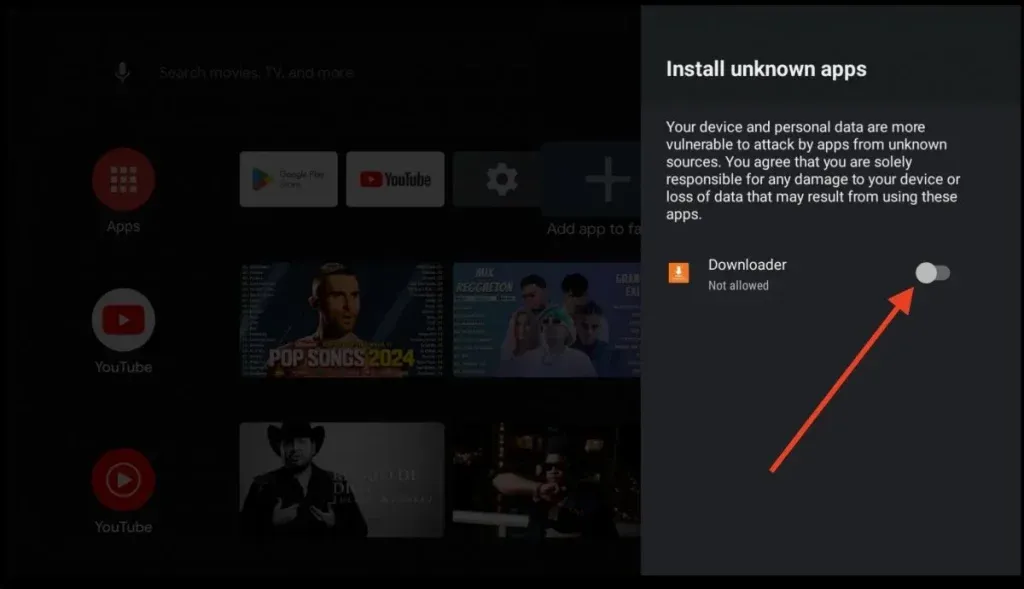
This app-specific approach is actually safer than a single device-wide toggle, since it limits the permission to only the one app doing the installing, rather than opening the door for anything.
Because Android TV runs Google’s Play Store, getting a sideloading tool is more straightforward here than on Fire Stick — the same Downloader app used for Fire TV is available directly through the Play Store on most Android TV devices.
- Open the Play Store app on the Android TV.
- Search for Downloader.
- Select it and choose Install.
- Open Downloader once it finishes installing.
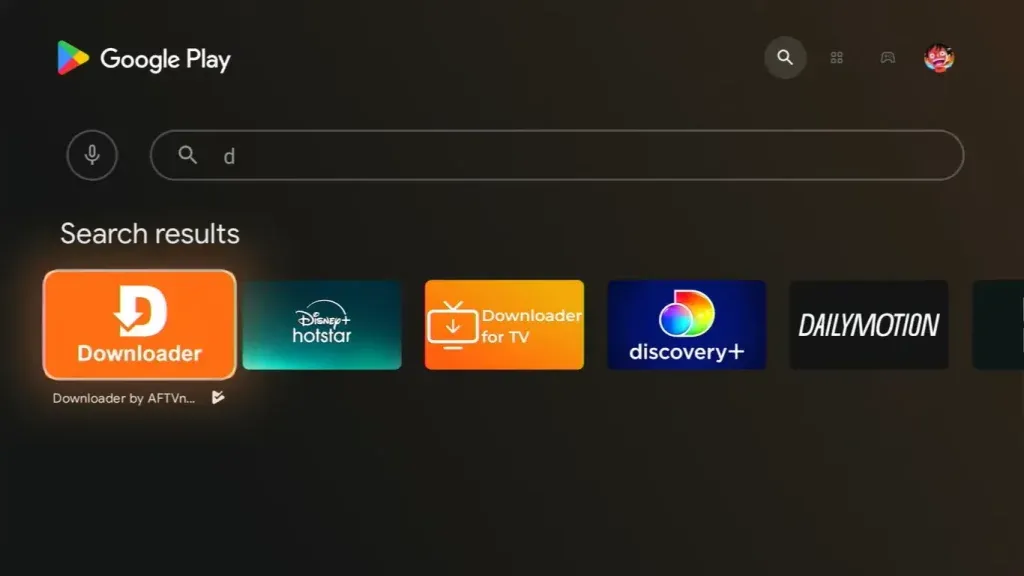
If Downloader isn’t available for a specific device for any reason, Send Files to TV is a widely used alternative that works from a phone instead of typing a URL directly on the TV — covered further down as a backup method.
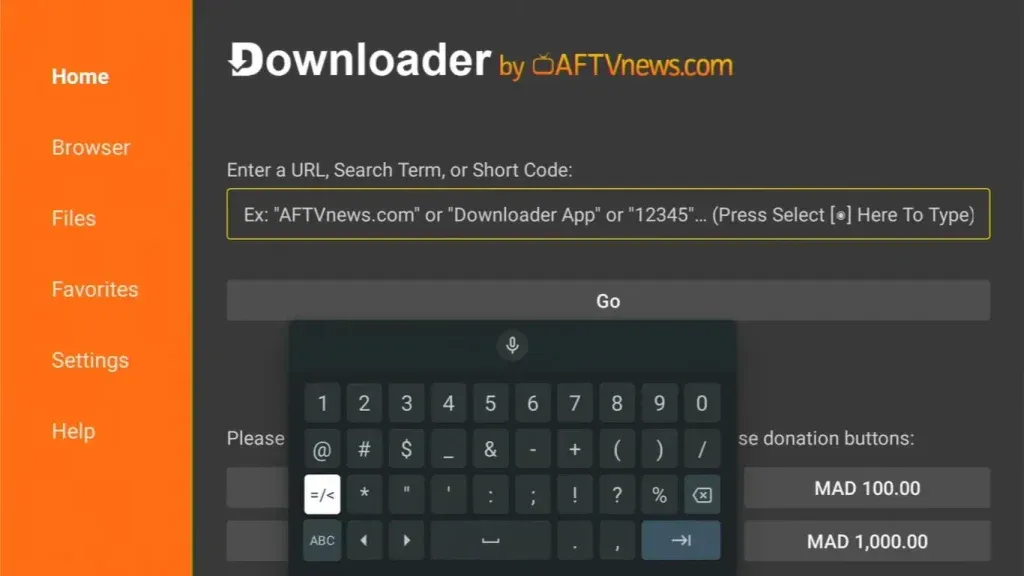
- Inside Downloader, select the URL field and enter the CloudStream APK download link.
- Select Go. On a stable connection, this typically finishes in under a minute.
- Once downloaded, a prompt appears asking to install — select Install.
- When finished, select Open to launch it, or Done to return to the home screen.
- If asked whether to delete the downloaded file afterward, choosing Delete just frees up storage and has no effect on the app itself.
As on every device, the home screen will be empty the very first time it opens — expected, not a sign of a failed install.
- Navigate to Settings → Extensions → Add Repository using the remote.
- Enter a repository’s short code, or paste its full URL if no short code is available.
- Select Add. It should appear in the list within a few seconds.
- Open the repository and choose which specific extensions to install — there’s no need to install everything it offers.
From here, browsing and playback work exactly as they would on any other device, just navigated with the Android TV remote instead of touch.
Alternative Method To Install CloudStream On Android TV: Send Files to TV
For anyone who’d rather not type a long URL using a remote-based on-screen keyboard, this method uses a phone to send the file directly instead:
- Install the Send Files to TV app on both the Android TV and a phone on the same Wi-Fi network.
- Download the CloudStream APK on the phone first.
- Open Send Files to TV on the phone, select the downloaded APK, and choose the Android TV as the destination.
- On the TV, accept the incoming file and follow the install prompt that appears.
This method trades a slightly longer setup for avoiding the on-screen keyboard entirely, which some people find easier, particularly on TVs where remote navigation feels sluggish.
Android TV Brands — Does It Matter Which One?
The install process itself is identical across brands, but real hardware differences affect how smoothly things run afterward:
| Device type | What to expect |
|---|---|
| Nvidia Shield | The most powerful common option — handles multiple extensions and 4K playback with no real limitations |
| Chromecast with Google TV | Solid performance for most use, though noticeably less headroom than the Shield with several extensions running |
| Sony, TCL, Hisense built-in Android TV | Performance varies by the TV’s release year and price tier — newer, higher-end models handle this more comfortably than older or budget models |
| Mi Box and similar budget boxes | Works, but benefits from the same lighter-load tips that apply to older Fire Stick models — fewer extensions installed at once, and occasional restarts |
None of this changes the setup steps above — it only affects how many extensions can comfortably run at once and how quickly menus respond.
Chromecast, Casting, and How It’s Different From This Install CloudStream On Android Tv
It’s worth clearing up a common mix-up: Chromecast (the casting feature) and Chromecast with Google TV (the device) are two different things. Casting sends video from a phone to a TV over Wi-Fi, using the phone as the source.
To Install CloudStream on Android TV devices directly, as covered in this guide, puts the app on the TV itself, with no phone required to keep it running. Both work, but a direct install gives access to offline downloads and doesn’t depend on a phone staying connected — which is why it’s the method covered here rather than casting.
Why This Setup Is Worth Doing on Android TV Specifically
A CloudStream Android TV setup tends to run more smoothly than the equivalent Fire Stick process, mainly because Android TV already has native Play Store access, which makes getting a sideloading tool a more direct process than on Amazon’s separate ecosystem.
For anyone choosing between a dedicated Android TV box and a Fire Stick specifically for this purpose, that’s a real practical difference — not just a brand preference.
Advanced Method To Install CloudStream On Android TV: Installing via ADB
This method isn’t necessary for most people, since Downloader or Send Files to TV cover the vast majority of setups, but it’s worth knowing about for anyone comfortable with a computer and wanting more control over the process:
- Enable Developer Options on the Android TV by going to Settings → Device Preferences → About, then selecting the build number several times until developer mode activates.
- Turn on USB Debugging and Network Debugging inside the newly unlocked Developer Options menu.
- From a computer with ADB (Android Debug Bridge) installed, connect to the Android TV’s IP address over the same Wi-Fi network.
- Run an install command pointing to the downloaded APK file.
This method is faster for anyone already comfortable with ADB, but it’s genuinely unnecessary for a first-time setup — Downloader accomplishes the same result with far less technical overhead.
Install CloudStream On Android TV–Specific Troubleshooting
Downloader isn’t available in the Play Store on this device.
Some budget or older Android TV boxes run a limited version of the Play Store. The Send Files to TV method above works as a reliable alternative in this case.
The Unknown Sources setting doesn’t show the app that needs permission.
This usually means the sideloading app hasn’t been opened yet at least once — opening it first, then returning to the permissions menu, typically makes it appear.
The remote lags or doesn’t respond consistently inside the app.
Backing out to the Android TV home screen and reopening the app usually resets this. If it continues, a full device restart resolves it in most cases.
CloudStream installs but closes immediately.
This is uncommon and typically means the downloaded file was incomplete. Deleting it and downloading again resolves this more often than any other fix.
Playback stutters on an older or budget Android TV box.
Points toward limited memory rather than internet speed — closing other open apps and reducing the number of extensions running at once helps noticeably on lower-powered devices.
A newly added repository doesn’t show any extensions yet.
Occasionally a repository’s listing updates slightly after being added. Waiting a minute and reopening it usually resolves this on its own.
The Play Store shows Downloader as incompatible with the device.
This happens on a small number of highly restricted or heavily modified Android TV builds. A USB flash drive with the APK copied onto it, plugged directly into the device, works as a fallback when neither Downloader nor Send Files to TV is available.
CloudStream works but the interface looks stretched or cropped on the TV.
This is usually a display scaling setting on the TV itself rather than an app issue — checking the TV’s picture size or aspect ratio settings, separate from CloudStream, typically resolves it
Choosing Extensions Without Overloading a Lower-Powered Box
On budget or older Android TV hardware specifically, it’s worth being more selective about extensions than on a phone or high-end box like the Shield. Each installed extension adds a small amount of background overhead, and on limited-memory devices this adds up faster than it would on stronger hardware.
A practical approach: install two or three extensions covering what’s actually watched regularly, confirm they run smoothly, and only add more if performance stays comfortable. This matters less on flagship devices, but on entry-level Android TV boxes it’s the difference between a setup that stays responsive and one that starts lagging within a few weeks of casual use.
Keeping an Android TV Setup Running Smoothly
A few habits help avoid the most common slowdowns over time, particularly on lower-powered devices:
Backing Up Settings for Future Reinstalls
Rebuilding a repository and extension list from scratch after a factory reset, a device swap, or a fresh install gets tedious quickly. Using the backup option under Settings → General → Backup inside CloudStream saves the current setup — repositories, extensions, and preferences — to a file. Restoring it on the same device after a reset, or on a new Android TV box entirely, brings everything back at once rather than re-adding each repository individually.
Doing this once a setup feels right saves real time later, particularly for anyone who ends up switching between an Android TV box and a phone or PC install regularly.
Is it Safe to Install CloudStream On Android TV
The app itself is open-source, meaning its code is public and can be reviewed by anyone — nothing about it operates invisibly in the background. Sideloading apps through Downloader or Send Files to TV is a standard, widely used method on Android TV, and neither tool puts the rest of the device at risk on its own. As with any sideloaded app on any platform, the one thing worth being careful about is downloading the APK from a source that can be trusted.
Install CloudStream On Android TV – FAQ
Yes, as long as the device runs the standard Android TV or Google TV interface. Performance varies by hardware, but the setup process is the same across brands.
Functionally, yes — it runs the same Google TV interface and supports the same sideloading methods covered in this guide.
Android TV runs Google’s standard Play Store, while Fire Stick uses Amazon’s separate Appstore. Downloader happens to be available on both, just installed through a different store on each.
The Send Files to TV method, covered above, works as a reliable alternative that doesn’t rely on the Play Store having Downloader listed for that particular device.
Yes, a Google account signed into the Android TV device is needed to access the Play Store and install a sideloading app in the first place.
Most will run it, though older or lower-memory devices benefit from the lighter-load habits covered above — fewer extensions running at once and occasional restarts.
Yes, extension installation inside the app works identically once it’s running — the Android TV-specific steps are only about getting the app installed in the first place.
No. It installs and runs as a standalone app, the same as anything from the Play Store, and doesn’t change settings for anything else already on the device.
Either through an in-app update prompt, or by repeating the Downloader steps with the newest APK link — this doesn’t remove any existing repositories or extensions.
Not for installation. A VPN only becomes relevant afterward, for a handful of region-restricted content sources, and works the same way on Android TV as it would on any other device.
Yes, as a fallback. Copying the APK onto a USB drive and plugging it into the Android TV device works on most models, though it requires a computer to prepare the drive first, making it more involved than Downloader for a typical setup.
Yes — this guide applies to devices running the Android TV or Google TV operating system specifically. A “smart TV” with a different built-in operating system won’t support the same sideloading methods covered here.
Neither is inherently riskier — both install the same file. ADB is simply a more technical route better suited to someone already comfortable with command-line tools, not a security difference.